Neet-Nestor/Telegram-Media-Downloader
JavaScriptgreasyfork.org/scripts/446342-telegram-media-downloaderA script allowing you to download images and videos from Telegram web even if the group restricts downloading.
Telegram Video Downloader / Telegram Media Downloader
Unlock Telegram: Download Anything You Like.



Overview
This user script unlocks and enables download of images, GIFs, audios, and videos in Telegram webapps from chats, stories, and even private channels where downloading is disabled or restricted.
(Note: some features are only available for specific Telegram webapp version. e.g. Audio message download is only available for the K webapp version.)
What are user scripts?
User scripts put you in control of your browsing experience. Once installed, they automatically make the sites you visit better by adding features, making them easier to use, or taking out the annoying bits. The user scripts on Greasy Fork were written by other users and posted to share with the world. They're free to install and easy to use.
Installation
Greasy Fork
install a user script manager
To use user scripts you need to first install a user script manager. Which user script manager you can use depends on which browser you use.
- Chrome: Tampermonkey or Violentmonkey
- Firefox: Greasemonkey, Tampermonkey, or Violentmonkey
- Safari: Tampermonkey or Userscripts
- Microsoft Edge: Tampermonkey or Violentmonkey
- Opera: Tampermonkey or Violentmonkey
- Maxthon: Violentmonkey
(Note, If you are using Tampermonkey extension in a Chrome-based browser, following instructions to enable Developer Mode.)
Install this script by visiting Greasy Fork: https://greasyfork.org/scripts/446342-telegram-media-downloader
Manual Installation
install a user script manager
To use user scripts you need to first install a user script manager. Which user script manager you can use depends on which browser you use.
- Chrome: Tampermonkey or Violentmonkey
- Firefox: Greasemonkey, Tampermonkey, or Violentmonkey
- Safari: Tampermonkey or Userscripts
- Microsoft Edge: Tampermonkey or Violentmonkey
- Opera: Tampermonkey or Violentmonkey
- Maxthon: Violentmonkey
(Note, If you are using Tampermonkey extension in a Chrome-based browser, following instructions to enable Developer Mode.)
Open Tampermonkey Dashboard, drag & drop src/tel_download.js into it and clicks the "install" button
How to Use
This script only works on Telegram Webapp.
For channels and chats that allow saving content, this script will have no effect. Please just use the official download button provided by the telegram webapp instead.
For channels and chats that disable downloading and restrict saving content, this script will add the download button back for images, GIFs and videos.
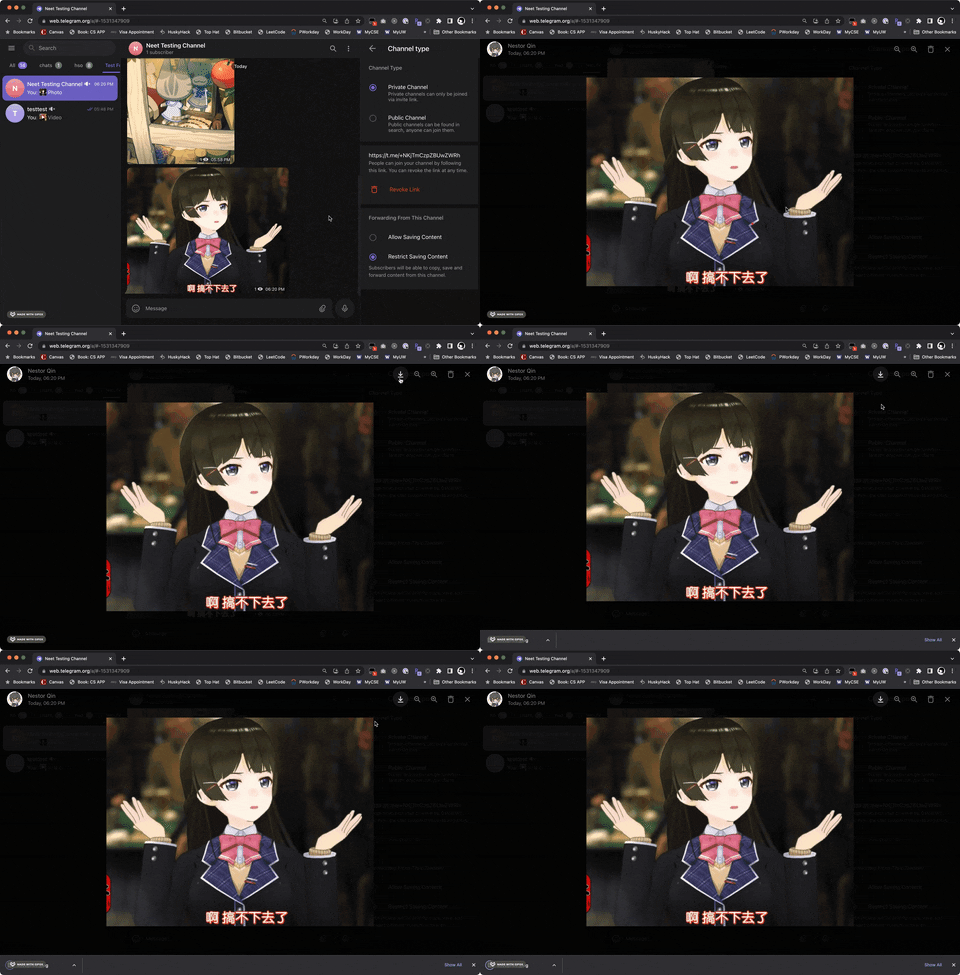
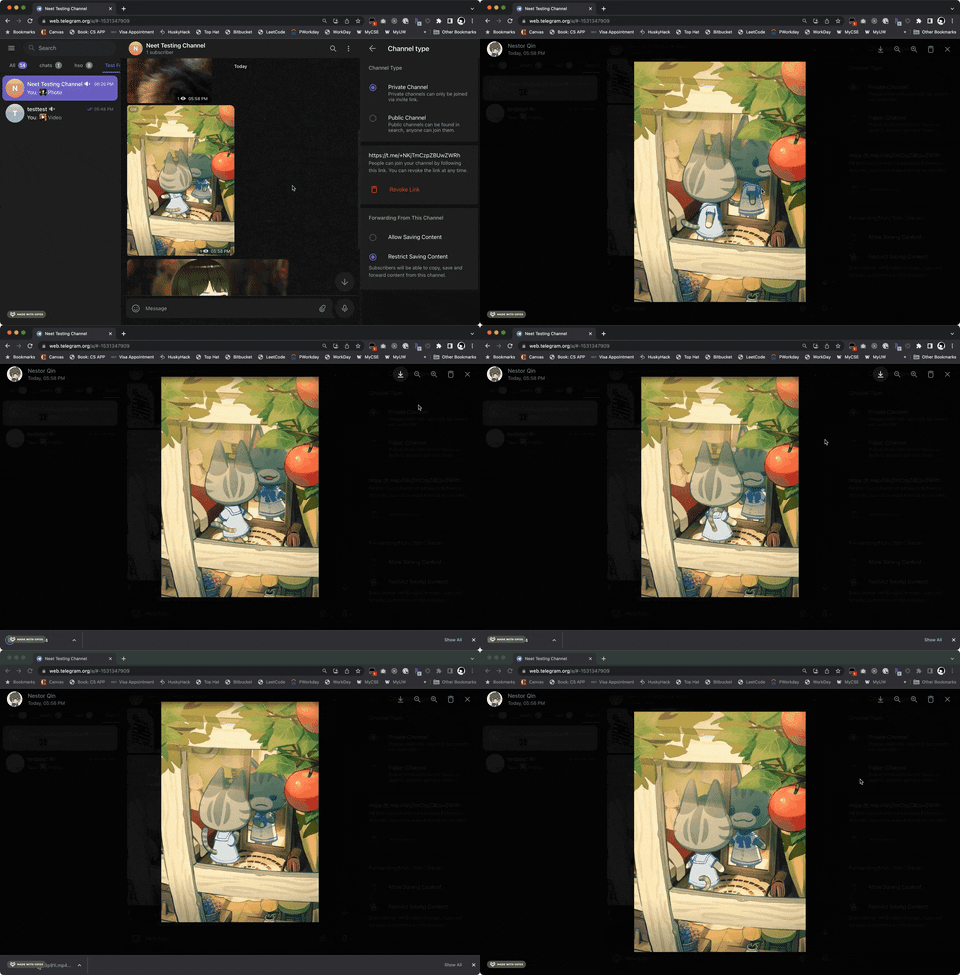
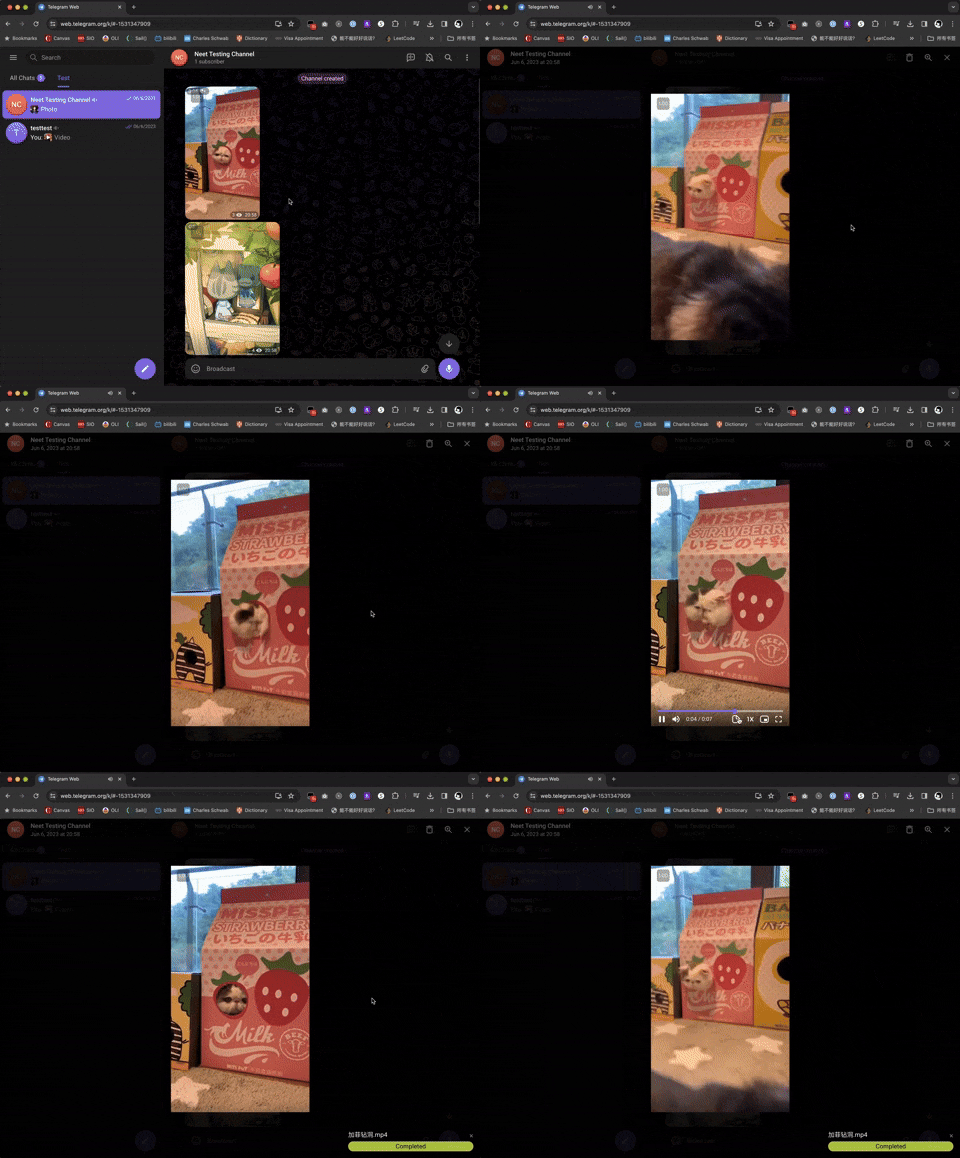
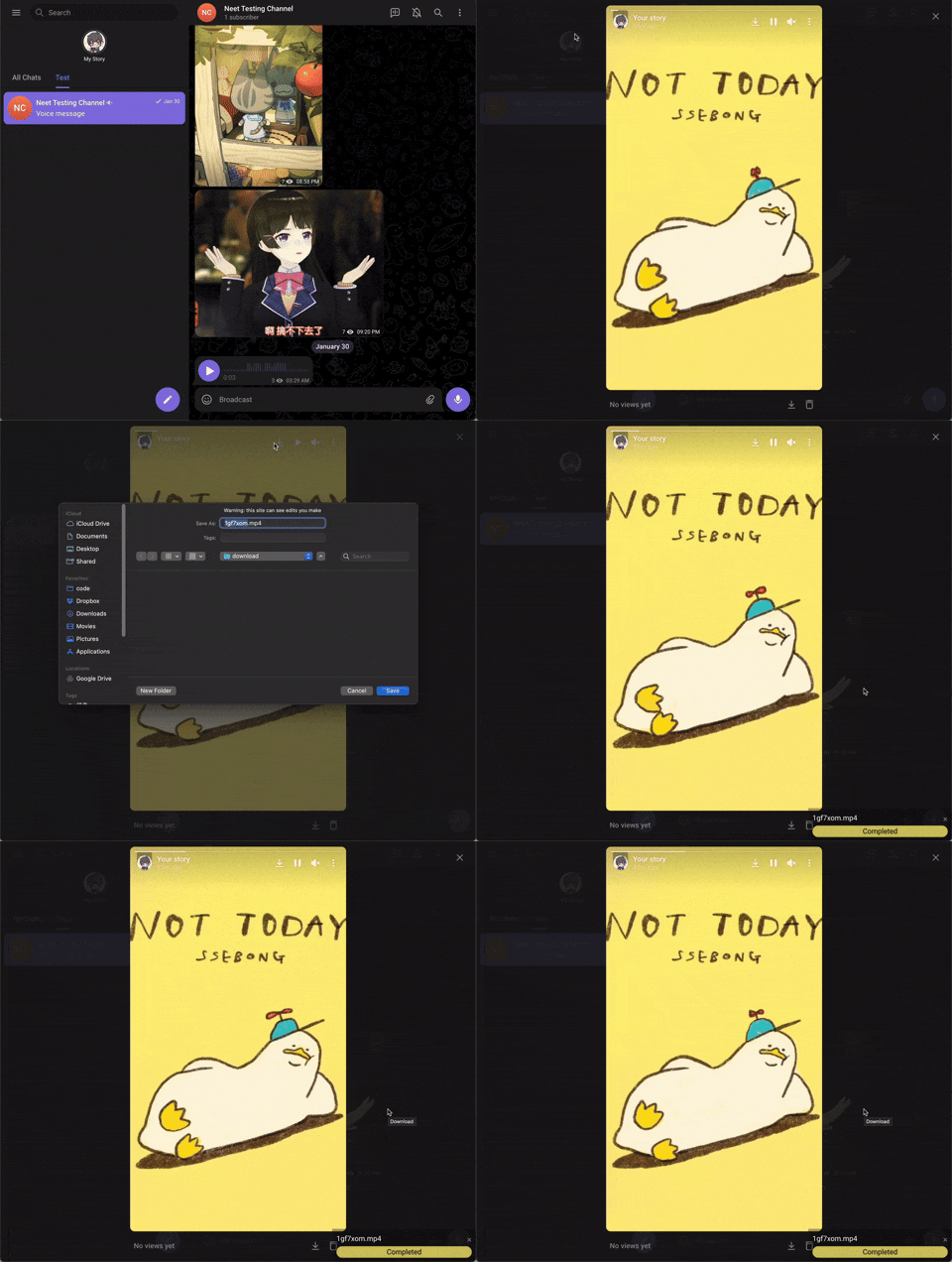
Downloads started by this script appear in a task panel at the bottom-right, including videos, images, and audio. Telegram's own download controls continue to use Telegram's interface.
Supported Webapp Versions
There are 2 different versions of telegram webapps:
- https://webk.telegram.org / https://web.telegram.org/k/ (Recommended)
- https://webz.telegram.org / https://web.telegram.org/a/
This script should work on both versions of webapp, but some features are only available in the /k/ version (such as voice message downloads). If certain features are not working, switching to the /k/ version is recommended.
Check Downloading Progress
The task panel shows the filename, received size, and download speed. When the total size is known, it also shows a percentage. Up to two files download at once; additional files wait in the queue. Clicking the same media again focuses its active task.
- Hide collapses the panel. × dismisses one task card. Both leave downloads running.
- Cancel stops a queued or active download and discards unfinished file writes. Cancellation is disabled while the completed file is being committed.
- Retry restarts a failed or cancelled download from the beginning. If the media URL has expired, reopen the media and use its download button again.
- Completed means direct file saving succeeded. Sent to browser means the file was handed to the browser's download manager; check that manager for the final save result.
Keep the Telegram tab open until the transfer finishes. Browsers without direct file saving collect the downloaded data before handing it to the download manager, so large downloads can use substantial browser resources. Errors are also available in the DevTools console.
Interface Language
The download UI supports English, Simplified Chinese, Traditional Chinese, Russian, and Burmese. It uses the first supported language in your browser's language preferences, falling back to English. Chinese script and regional variants are recognized, including Traditional Chinese for Taiwan, Hong Kong, and Macau.
Open the gear-shaped Settings button in the download panel, then use Interface language to choose a language or return to Browser language. Changes apply immediately to existing tasks, errors, and the script's download buttons without interrupting downloads. The preference is saved on the current Telegram web origin and shared across its tabs; if browser storage is blocked, it lasts for the current page only. Browser-provided dialogs and technical error details keep their original language.
Contributing
We welcome contributions from the community! If you’d like to contribute to Telegram Media Downloader, follow these steps:
Reporting Issues
If you find a bug, compatibility issue, or have a feature request, please:
- Check if the issue has already been reported in the Issues tab.
- If not, create a new issue with a clear title and description. Attach screenshots or logs if applicable.
Submitting Pull Requests
Fork the repository: Click on the "Fork" button in the top-right of the repo.
Clone your fork:
git clone https://github.com/YOUR-USERNAME/Telegram-Media-Downloader.git
cd Telegram-Media-Downloader
Create a new branch for your feature or bugfix:
git checkout -b feature-or-bugfix-nameMake your changes and ensure the script still works correctly on supported Telegram webapps.
Make your changes and ensure the script still works correctly on supported Telegram webapps.
Commit your changes with a descriptive message:
git commit -m "Add feature/fix issue: Brief description"Push to your fork:
git push origin feature-or-bugfix-nameSubmit a Pull Request (PR):
Go to the original repository: Neet-Nestor/Telegram-Media-Downloader.
Click "New Pull Request" and select your branch.
Add a description of your changes and submit.
Development Guidelines
- Keep your code clean and well-documented.
- Follow the existing coding style.
- Test your changes on both Telegram WebK and WebZ versions.
- Ensure compatibility with major user script managers like Tampermonkey and Violentmonkey.
Automated Tests
Use Node.js 22 or newer to run the regression tests:
npm ci
npx playwright-core install chromium
npm run check
npm test
To use an existing Chromium/Chrome installation, set TEL_TEST_BROWSER to its executable path instead of installing Chromium. Tests run in an isolated browser profile with simulated Telegram pages and network responses; no Telegram account is needed. The userscript itself has no npm runtime dependencies.
GitHub Actions runs these checks on every push and pull request. Browser fixtures cover download behavior and known failure cases, while live /a/ and /k/ checks remain useful when Telegram changes its markup.
Help with Translations
We want Telegram Media Downloader to be accessible to users worldwide! If you’d like to help translate the script’s Greasy Fork page, follow these steps:
For the download UI, add the language's native name to UI_LANGUAGES and its messages to UI_MESSAGES in src/tel_download.js. Keep every English message key and its {placeholders}; add regional or script matching to matchLanguage if needed. Keep translations as plain text. Run npm test to check message coverage, placeholders, language switching, and download regressions. Missing messages fall back to English.
How to Contribute a Translation
Check for existing translations in the docs/greasyfork folder of the repository.
Add a new file in docs/.md, using the appropriate language code (e.g., docs/fr-FR.md for French, docs/de-DE.md for German).
Translate the content from docs/greasyfork/en-US.md into your language while keeping the formatting intact. Submit a Pull Request following the steps in the Submitting Pull Requests section above.
Language Codes
Use standard IETF Language Tag (e.g., es-ES for Spanish, ja-JP for Japanese). You can find a full list of codes here.
Support Author
If you like this script, you can support me via Venmo or buy me a coffee :)