jellyfin/jellyfin-mpv-shim
PythonMPV-Based Jellyfin Client with Offline Sync
↓ 다운로드
모든 릴리스 →Jellyfin MPV Shim



Jellyfin MPV Shim is a fully featured Jellyfin client built on top of MPV with support for offline sync, media browsing, background casting, syncplay, music, live TV, books, and photos. It does not depend on or use a webview and doesn't mess with MPV's video output pipeline, allowing for HDR and tone mapping support.
Download for Windows · Flathub (Linux) · pip (Linux) · macOS
More screenshots
 |
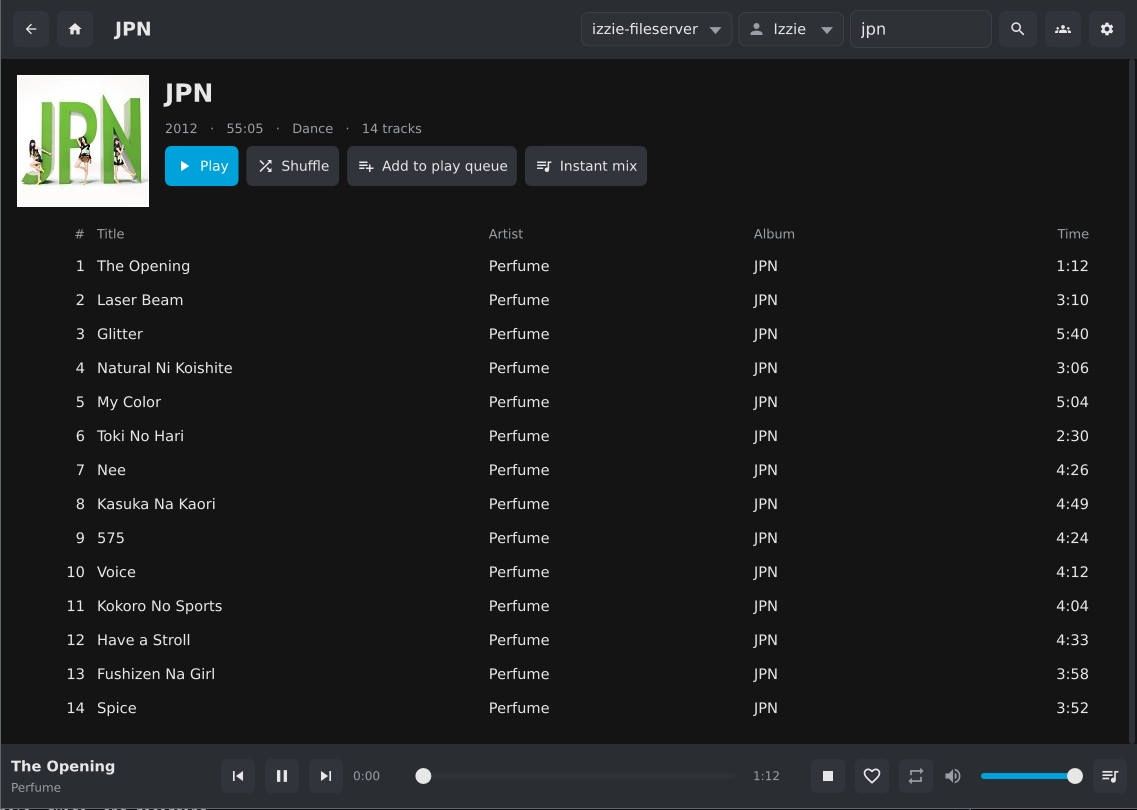 |
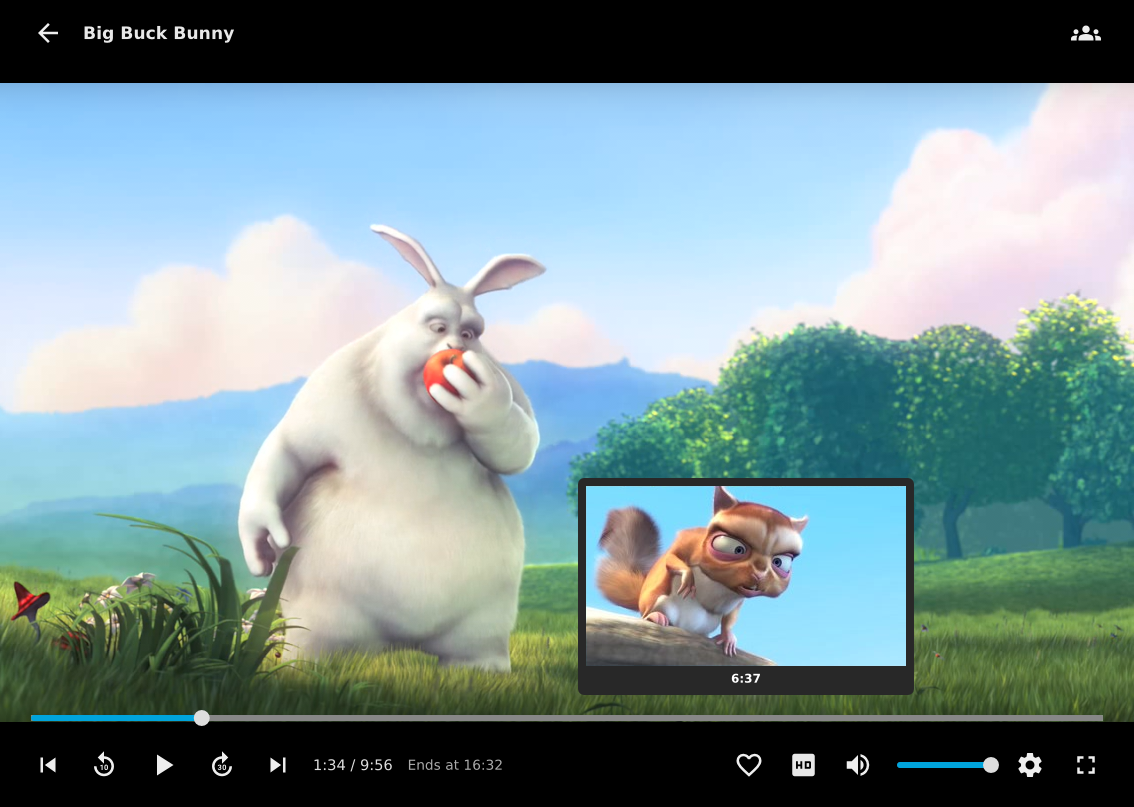
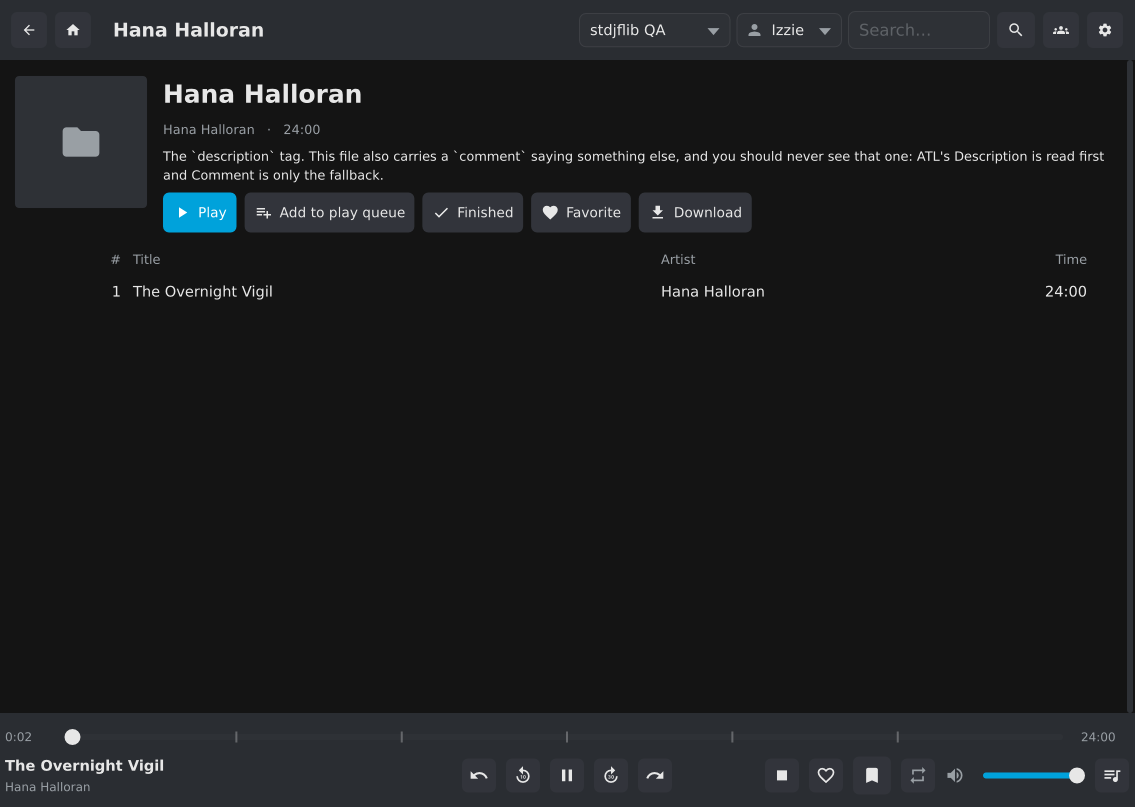
| Playback | Music |
 |
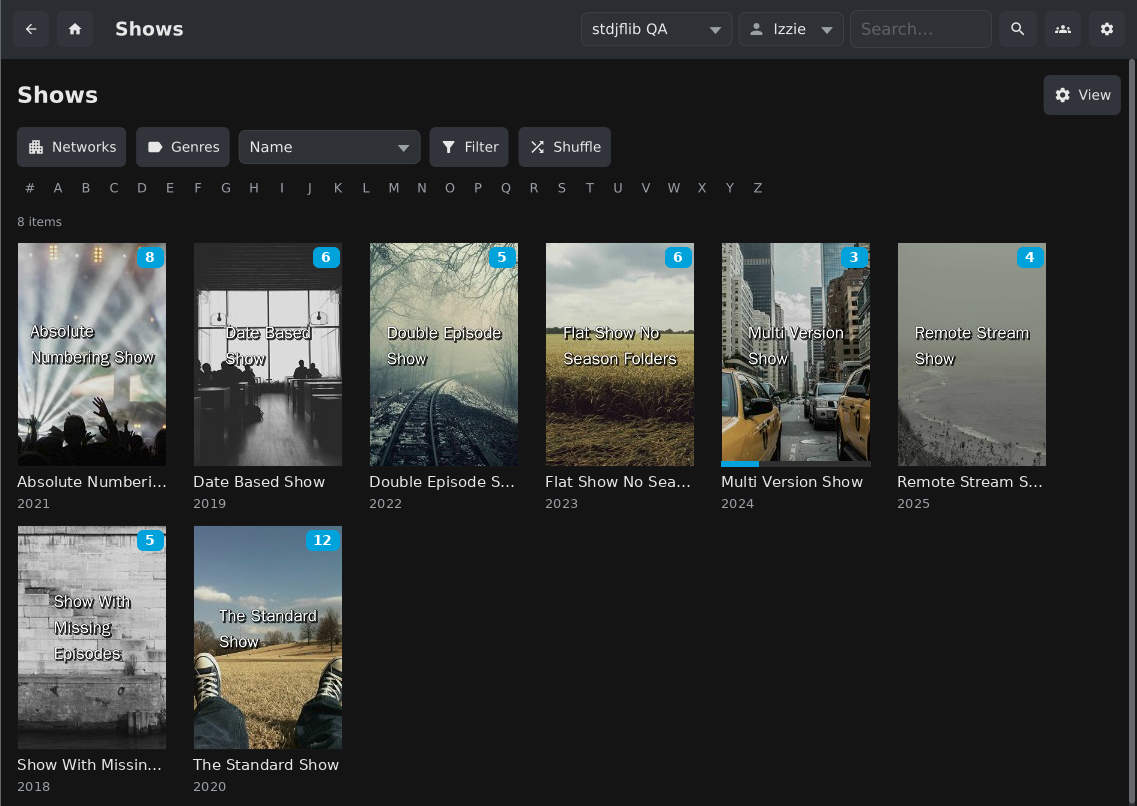 |
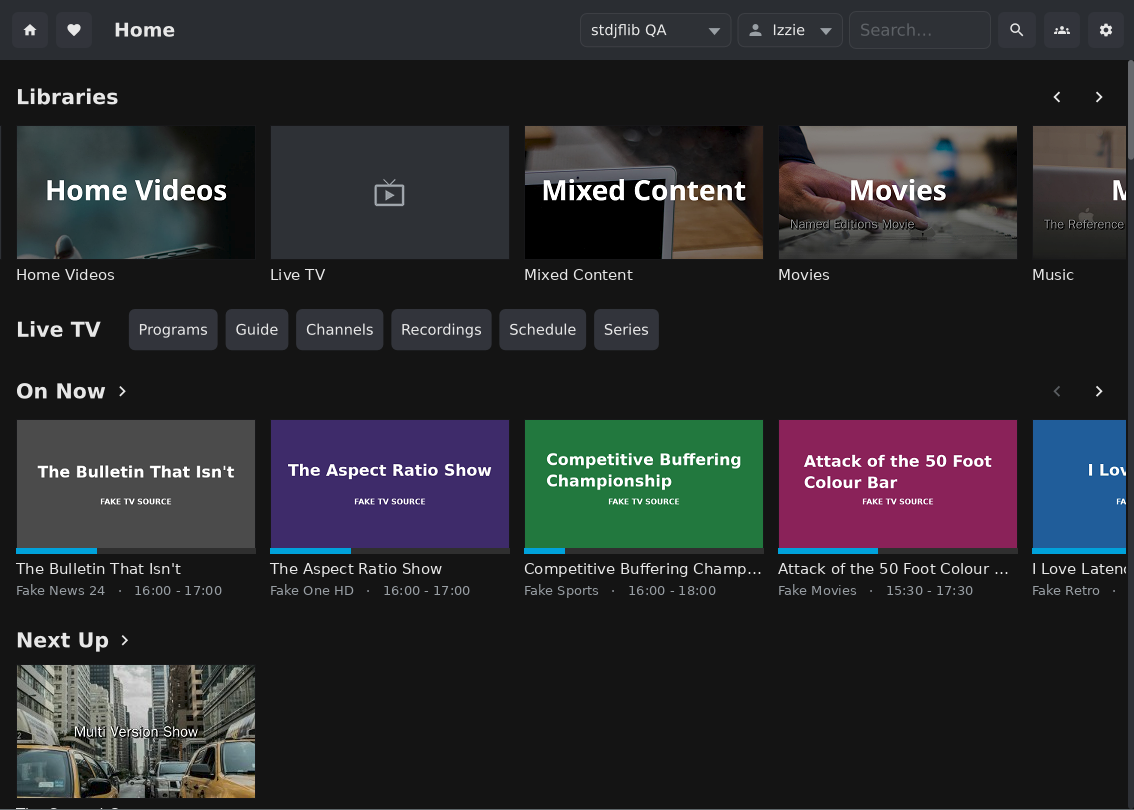
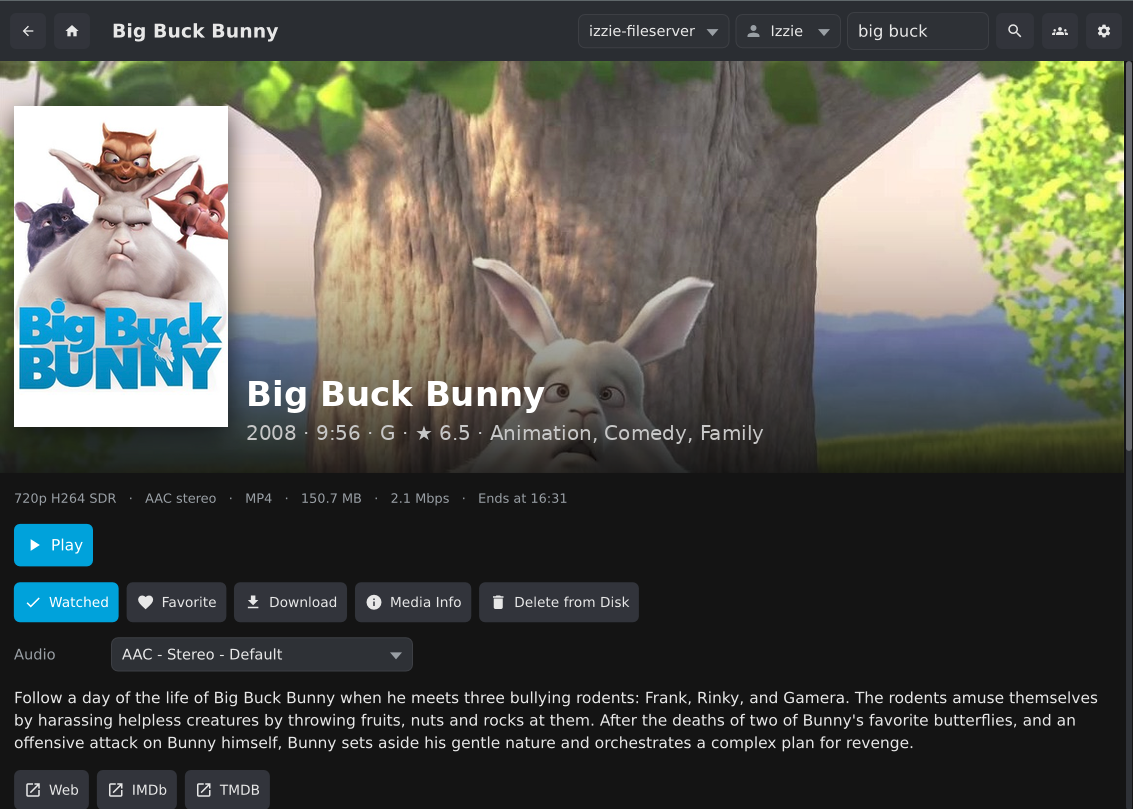
| Detail page | TV shows |
 |
 |
| Live TV guide | Comic reader |
 |
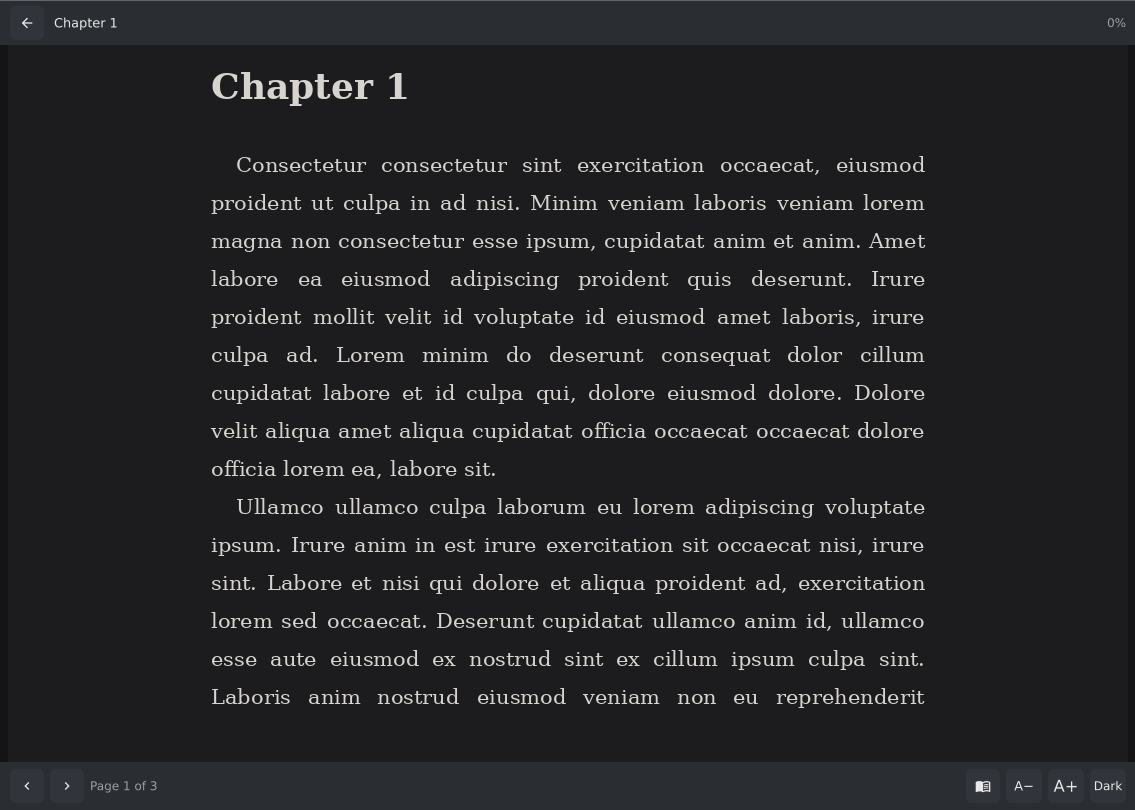 |
| Audiobook | Epub reader |
Features
- Uncompromising Playback: MPV's rendering and video pipelines are completely untouched. It's not redirected, broken, or embedded in a toolkit. Native HDR and Dolby Vision are supported on Windows and Linux.
- Browse and play your entire library including films, shows, music, photos, Live TV and books, comics and audiobooks.
- Offline sync: download media for offline viewing, automatically if desired.
- Cast target: Fully controllable from Jellyfin web and mobile apps.
- SyncPlay: Watch media with friends, without screen shares or awkward syncing.
- Smart Subtitles: No need to set for every episode, they're remembered by default and can be forced globally.
- Video Enhancement: video upscaling, debanding, and motion interpolation.
- Advanced Audio: Audio passthrough and night mode so you can actually hear people talking.
- Seamless User & Server Switching via fast user switching and optional PINs.
- Keyboard, mouse, Jellyfin remote and game controller support, and all of MPV's shortcuts.
- MPRIS media controls on Linux, Discord Rich Presence, shell commands on playback events, and an external MPV if you prefer your own.
Getting started
Install it (below), launch it and log in. Enter your server's address, e.g.
http://192.168.1.10:8096 or https://jellyfin.example.com, including any subpath; port
8096 is assumed if you leave it out, so a server on port 80 needs :80. Quick Connect works
too.
Then browse from the window, or cast to it from another Jellyfin app. When a system tray is available, closing the window keeps it running there as a cast target; you can change that in Settings.
Windows
Download the installer from Releases.
There are ARM64 builds, and LEGACY64 builds for CPUs without x86-64-v3 support
(roughly pre-2013).
Linux
The Flatpak is the
most integrated option. To install with pip instead you need libmpv (or mpv). MPV 0.41
or newer is recommended:
pip3 install --upgrade jellyfin-mpv-shim
Optional extras:
- Tray icon: keeps it running in the background once the window closes (or enable
Keep Running in Background in Settings instead):
pip3 install 'jellyfin-mpv-shim[systray]', plus GObject and AppIndicator from your distribution (on Debian:python3-gi gir1.2-ayatanaappindicator3-0.1). The virtualenv must have--system-site-packages; with pipx,pipx install --system-site-packages 'jellyfin-mpv-shim[systray]'. - Discord Rich Presence:
pip3 install 'jellyfin-mpv-shim[discord]', then enable it in Settings.
With MPV older than 0.41, minimizing to the tray closes MPV rather than hiding its window, and
copy/paste in text fields needs wl-clipboard (Wayland) or xclip/xsel (X11).
If your distribution's MPV is old, mpv-build builds
a current one with libmpv by default; run sudo ldconfig afterwards. Add
-Dsdl2-gamepad=enabled to its mpv_options for controller support.
macOS
The application is not tested on Mac OS and is not formally supported. PRs to improve support and third-party packaging are welcome.
brew install python mpv pipx
pipx ensurepath
pipx install 'jellyfin-mpv-shim[systray]'   # drop [systray] if you don't want the menu bar icon
jellyfin-mpv-shim
Using it
Controls and remotes
Use the mouse, or the arrow keys, Enter and Esc. The mouse's thumb buttons go back and forward a page; right-click Back (or Home at the top level) to jump anywhere in the history.
From a Jellyfin remote, use the arrows, OK, Back and Home. Menu opens the context menu of the selected item (Play, Queue, Mark Watched, Favorite, Download) or, during playback, the player's settings menu. Search jumps to the search box. Opening a film or episode lands on its Play button, so OK twice plays it.
During playback the controls have audio, subtitle and quality pickers, and the gear menu (or
c) holds speed, aspect, shader profiles, subtitle style, SyncPlay and screenshots.
Keyboard shortcuts
Most of MPV's keyboard shortcuts work. The app adds:
| Key | Action | Key | Action | |
|---|---|---|---|---|
< > |
Previous / next item | c |
Player settings menu | |
q |
Stop | k |
Unload the shader profile | |
w |
Mark watched and skip | u |
Mark unwatched and stop |
And the MPV ones you are most likely to want: space pause, ←/→ seek 5 s, ↑/↓ seek
1 min, f fullscreen, m mute, s / S screenshot with / without subtitles, , . step a
frame, [ ] speed ±10%, backspace reset speed, d deinterlace, Ctrl+Shift+←/→
subtitle delay.
All of these can be changed. See Keyboard shortcuts
and input.conf.
Live TV
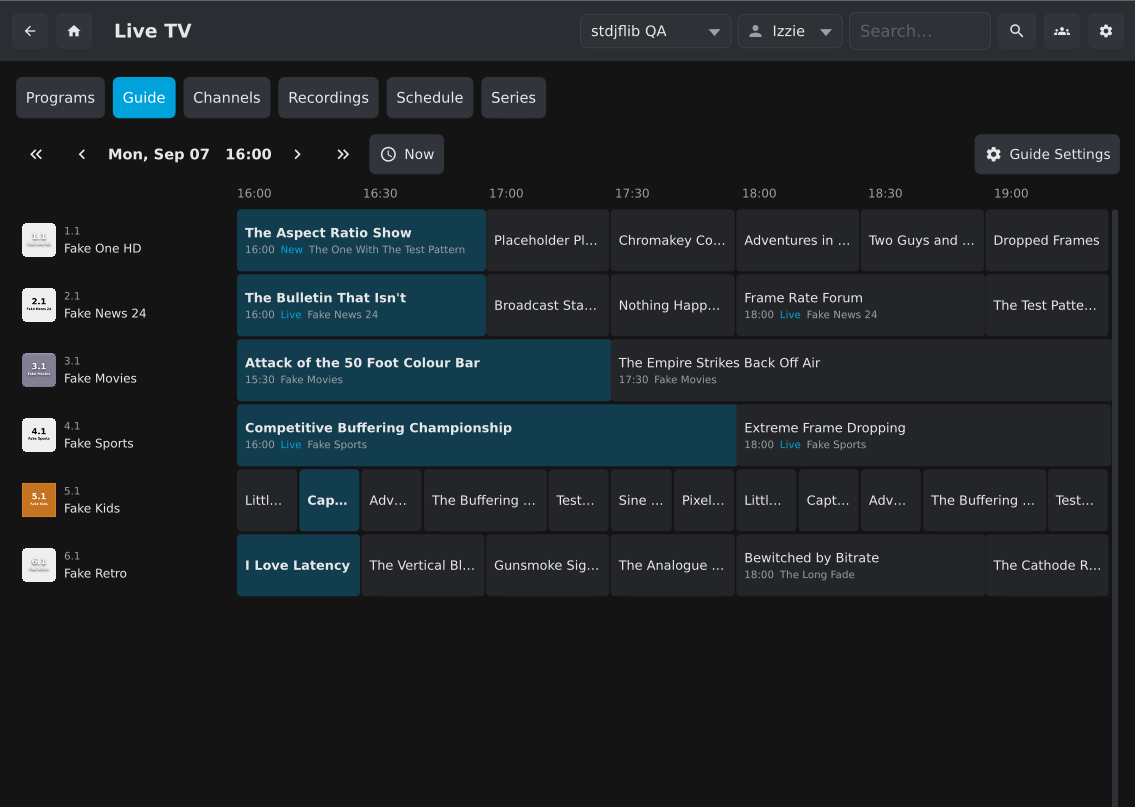
With a tuner on your server, Live TV appears with your libraries, with the web client's six screens: Programs, Guide, Channels, Recordings, Schedule and Series (recording rules). Right-click any programme to record it or the series. Guide Settings are stored on the server, shared with the web client.
The guide shows one window of time and pages with the arrows, rather than scrolling sideways through 24 hours.
Books, comics and audiobooks
Books libraries browse by folder, as in the web client.
- Epub opens in a built-in reader with adjustable size, page colour and justification.
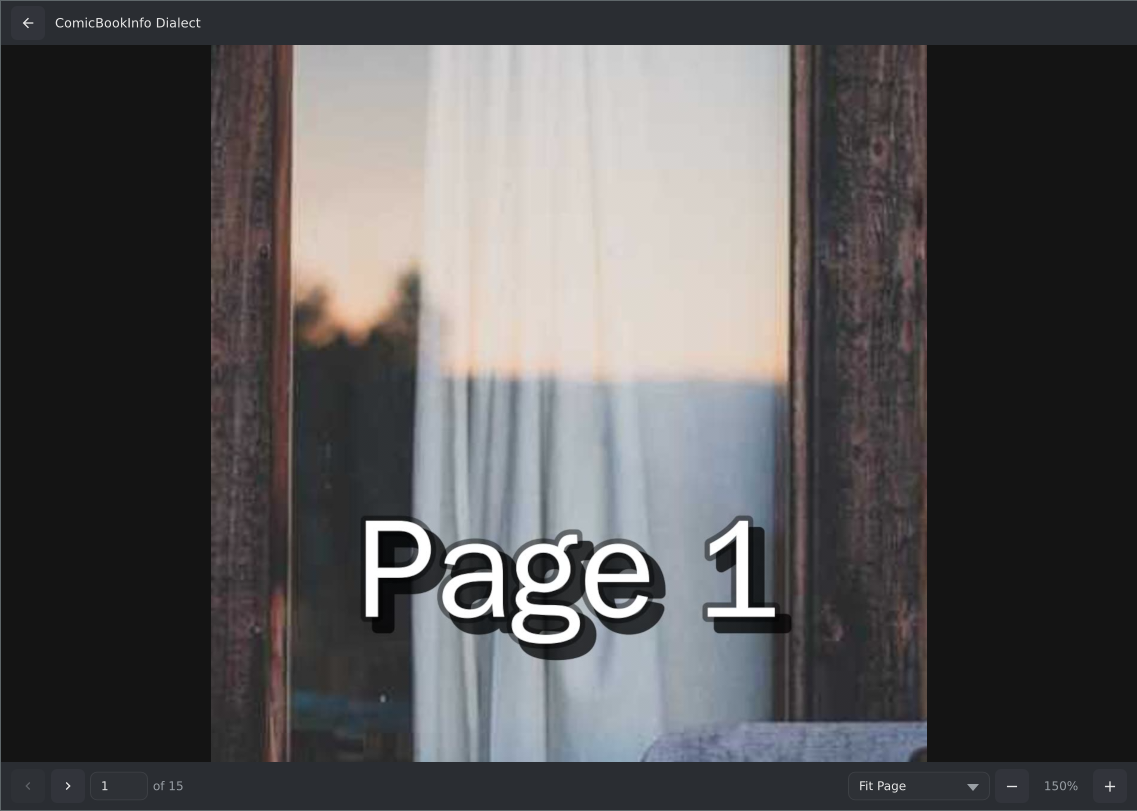
- Comics (
cbz,cbt) open in a built-in reader with fit-width and fit-page zoom. - Other formats (
pdf,mobi,azw3,cbr,cb7) open in your desktop's own application. - Audiobooks play like music, with chapter navigation, skip back 10 s / forward 30 s, and chapter marks on the seek bar. Resume continues from where you stopped; Play from Beginning is a separate button so you don't lose your place by accident.
The built-in readers save your position to the server as you turn pages, in the same form the web client uses, so you can carry on elsewhere. For formats read outside the app, use Progress… on the book's page to pull or push your page.
Jellyfin can only hand over a book as a whole file, so reading downloads it first, and your account needs the "Allow media downloads" permission to read books at all.
Fast user switching
Several people can share one player, each with their own servers and logins. In Settings → Servers, Add User, switch to it and add its servers. Once there is more than one user, a user picker appears beside the server picker in the top bar.
- Each user gets its own device identity, so two users on the same server don't share a session.
- Set PIN locks a user; optionally require it at startup too. This is a parental-control convenience, not security. Nothing is encrypted (although PINs are hashed).
Cast-target mode (headless)
For a machine that should only be a cast target, such as a shared TV, set headless to
true in the config file. It then shows "Ready to cast" instead of the library: casting,
playback and the player controls work; browsing, search and settings are not reachable from
the machine.
This is not a security feature. It stops casual use, not anyone with access to the config file or the tray menu.
Shader packs and SVP
The bundled shader pack offers upscaling and
enhancement profiles (FSRCNNX, Anime4K). Choose one from the player's gear menu under Change Video
Playback Profile. If video breaks, pick a different Graphics API for Shaders in Settings →
Playback → Video Enhancement; opengl is the most compatible. If the app won't start after
choosing a profile, launch it once with --reset-shaders; if the picture is merely garbled,
press k.
SVP can be controlled from the menu too; it needs some setup. See SVP integration. Please note that I don't have an SVP license (it used to be free on Linux), so the support is untested.
Configuration
Almost everything is in Settings, which has a search box. The complete reference, including options with no UI, is docs/configuration.md, along with where the config folder is (the tray icon can open it).
Tips and troubleshooting
Open on a specific monitor
In mpv.conf in the config folder, add fs-screen=N
(with fs=yes to open fullscreen), where N counts from 0. On Windows, the monitor number in
Display Settings minus one. If X11 reports your monitors as one screen, use geometry= with the
position xrandr shows instead, e.g. geometry=1920x1080+0+0. Restart the app after editing.
Volume on the mouse wheel
Add to input.conf:
WHEEL_UP add volume 5
WHEEL_DOWN add volume -5
Run multiple instances
--config /path/to/folder runs another, independent copy. Launching again with the same
folder just brings the running one forward. jellyfin-mpv-shim stop (with the same
--config, if any) shuts an instance down cleanly.
Arabic or Hebrew text drawn backwards
Some text is drawn with Pillow, which needs FriBiDi for right-to-left scripts and kerning; without it nothing errors, but RTL titles come out reversed and captions are slightly mis-measured. The Windows installer and the Flatpak include it. Elsewhere, check:
python3 -c "from PIL import features; print(features.check('raqm'))"
If this prints False, install FriBiDi (libfribidi0 on Debian/Ubuntu, fribidi on Fedora
and Arch). If pip built Pillow from source rather than using a wheel, also install libraqm's
development package and run pip3 install --force-reinstall --no-binary=pillow pillow.
Known issues
- Joining a SyncPlay group from a client that is casting to this one plays the media without enabling SyncPlay. Join from this player's own SyncPlay menu instead.
- Stopping playback leaves the group's content, not the group, as in the web client: SyncPlay → Resume local playback rejoins, and playing something else takes the group with you. Use SyncPlay → Leave to leave. SyncPlay can still be fragile — please report problems.
- Music has no gapless playback.
- A player counts as one device on a server; fast user switching gives each local user its own.
Development
Building, translating and testing: docs/development.md.