alternativa a Snagit
ShareX is a free and open-source application that enables users to capture or record any area of their screen with a single keystroke. It also supports uploading images, text, and various file types to a wide range of destinations.
↓ Baixar
Todas as versões →
Screen capture, file sharing and productivity tool






For further information please check our website
ShareX - Free Screen Capture, Screenshot, File Sharing and Productivity Tool
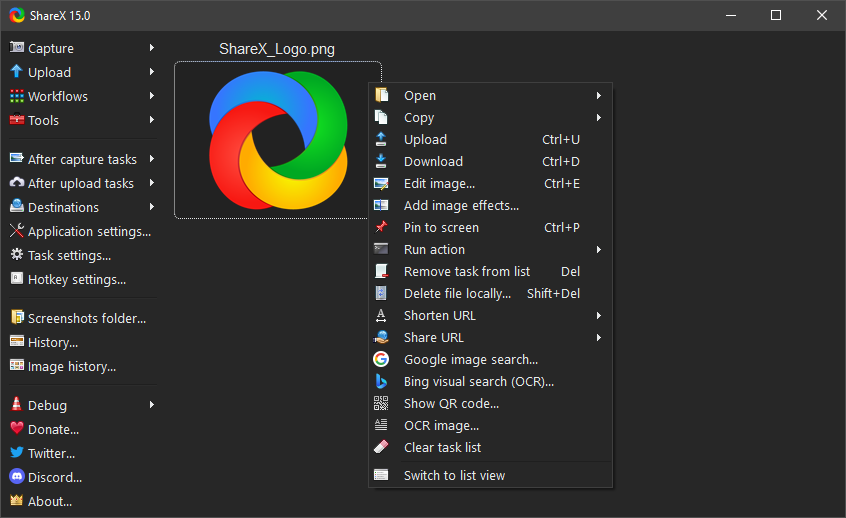
ShareX is a free and open source screenshot tool, screen recorder, file sharing tool and productivity application for Windows. It is designed for users who need fast screen capture, powerful screenshot editing, automated sharing, custom upload destinations and practical utilities in one lightweight desktop app.
With ShareX, you can capture any area of your screen, record video or GIFs, annotate screenshots, upload files, copy shareable links, extract text with OCR, scan QR codes, pick colors and run custom workflows from hotkeys. ShareX is built for speed and control: capture a screenshot, edit it, save it, copy it, upload it or pass it through your own task chain with minimal manual work.
Why ShareX?
ShareX combines screen capture, screen recording, image editing, file uploading and automation features that are often split across multiple applications. It is completely free, open source, lightweight, privacy focused and has no advertisements. No account is required to use ShareX.
ShareX is especially useful for developers, designers, support teams, content creators, technical writers, QA testers and power users who frequently create screenshots, record short clips, share files or document workflows. It can be used as a simple screenshot app, but it also supports advanced workflows for users who want precise control over capture methods, after-capture tasks, upload destinations and hotkeys.
Screenshot and Screen Recording Features
ShareX supports many ways to capture your screen:
- Fullscreen capture
- Active window capture
- Active monitor capture
- Region capture
- Scrolling screenshot capture
- Last region capture
- Custom region capture
- Screen recording
- GIF screen recording
- Auto capture
After capturing a screenshot or recording, ShareX can automatically copy the result to the clipboard, save it to a file, open it in the image editor, upload it, print it, show it in Windows Explorer, run an action, scan a QR code or recognize text with OCR. These after-capture tasks make ShareX a flexible screenshot workflow tool instead of only a basic snipping utility.
Region Capture and Annotation
ShareX region capture includes tools for selecting exactly what you want to capture and marking it before saving, copying or uploading. You can draw rectangles, ellipses, freehand lines, arrows, text, speech balloons, step numbers, highlights, blur effects, pixelation, magnification and spotlight effects.
These annotation tools help create clear screenshots for bug reports, documentation, tutorials, support replies, pull requests and release notes. Sensitive information can be hidden with blur, pixelate or smart eraser tools before a screenshot is shared.
Built-in Image Editor
The ShareX image editor lets you crop, annotate, redact, highlight and prepare screenshots after capture. It includes common editing tools such as shapes, arrows, text, freehand drawing, image insertion, cursor insertion, blur, pixelate, magnify, spotlight, crop, cut out, background editing and image effects.
Because the editor is part of the capture workflow, you can take a screenshot, mark the important area, hide private details and then copy, save or upload the edited image without switching between separate apps.
File Sharing and Upload Automation
ShareX can upload images, text, files, folders, clipboard content and URLs to many different destinations. After uploading, it can automatically copy the URL to the clipboard, open the URL, shorten the URL, show a QR code or run other configured tasks.
Advanced users can create custom uploaders for services that are not built in. ShareX also provides guides for destinations such as Amazon S3, Google Cloud Storage and Cloudflare R2, making it suitable for both personal screenshot sharing and team workflows where files need to be uploaded to controlled storage.
Productivity Tools
ShareX includes many utilities that support everyday desktop work:
Screen & color
Images
- Background remover
- Icon converter
- Image beautifier
- Image combiner
- Image comparer
- Image converter
- Image editor
- Image effects
- Image resizer
- Image splitter
- Image thumbnailer
- Image viewer
- Image watermark
Video
Data & text
System
These tools make ShareX useful beyond screenshots. It can help inspect images, prepare assets, extract information, verify files and speed up repetitive tasks.
Custom Workflows and Hotkeys
ShareX is built around configurable workflows. You can assign hotkeys to capture methods, choose what happens after capture, decide what happens after upload and create actions that run external tools or scripts. This makes it possible to build a workflow such as capture region, annotate image, save locally, upload to a destination, shorten the URL and copy the final link to the clipboard.
The workflow system is one of the main reasons ShareX is popular with power users. Simple tasks can stay simple, while advanced users can automate detailed screenshot, screen recording and file sharing processes.
Download ShareX
ShareX is available from the official website, GitHub releases, Microsoft Store and Steam. You can install the regular setup version, use a portable version or try development builds if you want the newest changes before a stable release.
For the safest download options, use the official links below.
Links
- Official website: https://getsharex.com
- Downloads: https://getsharex.com/downloads
- GitHub: https://github.com/ShareX/ShareX
- Changelog: https://getsharex.com/changelog
- Screenshots: https://getsharex.com/screenshots
- Privacy policy: https://getsharex.com/privacy-policy
- Donate: https://getsharex.com/donate
- X: https://x.com/ShareX
- Discord: https://discord.gg/ShareX
- Reddit: https://www.reddit.com/r/sharex
- Steam page: https://store.steampowered.com/app/400040/ShareX/
- Microsoft Store page: https://apps.microsoft.com/detail/9nblggh4z1sp
- ShareX related projects on GitHub: https://github.com/topics/sharex
Documents
- Image effects: https://getsharex.com/image-effects
- Actions: https://getsharex.com/actions
- Dev builds: https://getsharex.com/docs/dev-builds
- Keybinds: https://getsharex.com/docs/keybinds
- Region capture: https://getsharex.com/docs/region-capture
- Image editor: https://getsharex.com/docs/image-editor
- Background remover: https://getsharex.com/docs/background-remover
- Pin to screen: https://getsharex.com/docs/pin-to-screen
- Scrolling screenshot: https://getsharex.com/docs/scrolling-screenshot
- Command line arguments: https://getsharex.com/docs/command-line-arguments
- Translation: https://getsharex.com/docs/translation
- OCR: https://getsharex.com/docs/ocr
- Custom uploader: https://getsharex.com/docs/custom-uploader
- Amazon S3 guide: https://getsharex.com/docs/amazon-s3
- Google Cloud Storage guide: https://getsharex.com/docs/google-cloud-storage
- Cloudflare R2 guide: https://getsharex.com/docs/cloudflare-r2
- Brand assets: https://getsharex.com/brand-assets