⛷ A quiet, local-first Markdown writing app for Mac, to help you write great sentences.
↓ Baixar
Todas as versões →
MiaoYan
A native Mac app for local Markdown notes
MiaoYan is 妙言 in Chinese, words beyond words.
English · 中文 · 繁體 · 日本語 · 한국어 · Deutsch · Français






Features
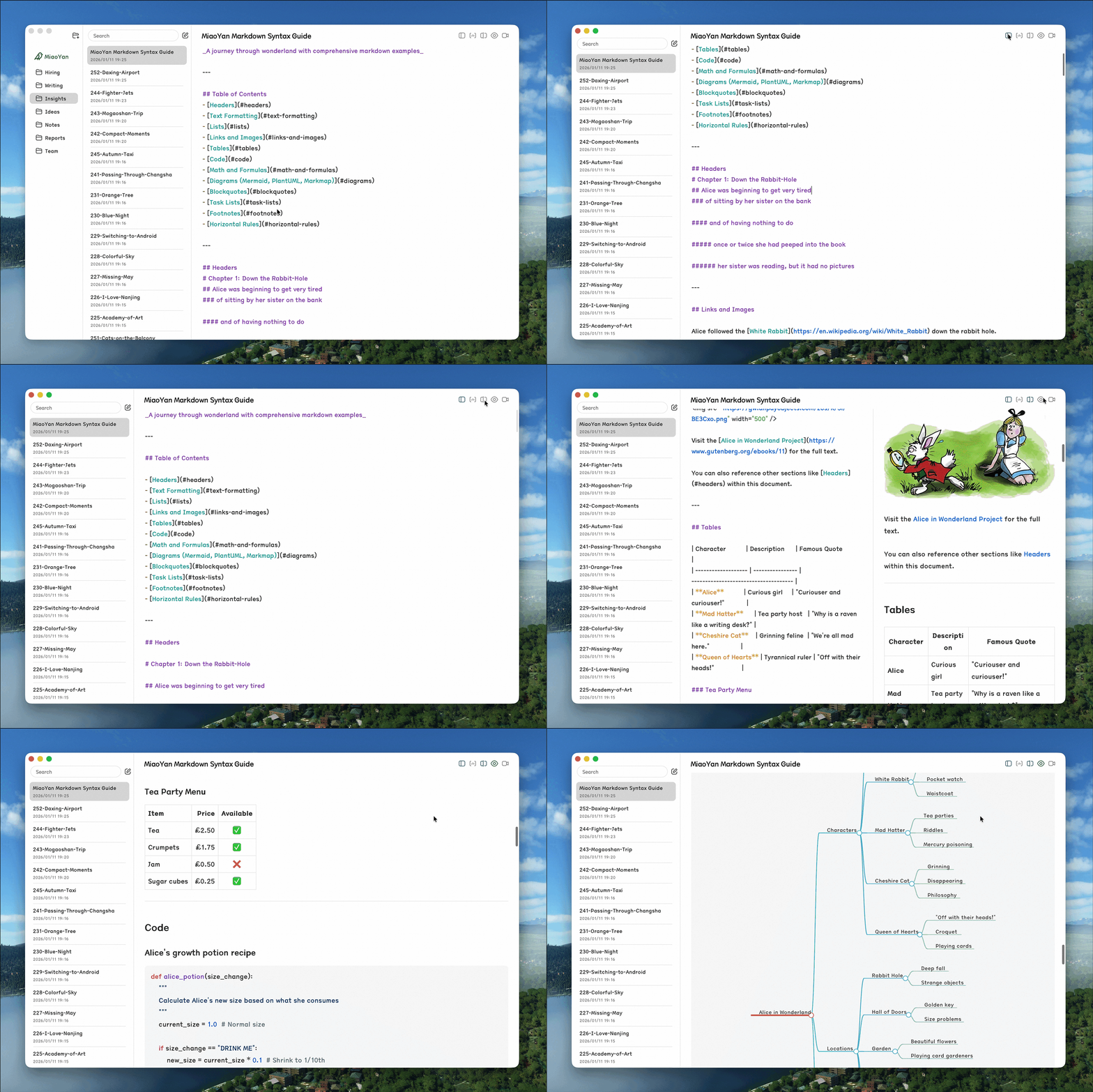
- Local-first: Notes are Markdown files in a folder you choose, with no data collection, and iCloud Drive or Nutstore can sync them across devices
- Focused: Folders, notes, and editor in three columns, with dark mode and no plugin system to maintain
- Native: Built with Swift 6, lighter than web wrappers, with 60fps scroll sync in split preview
- Capable: Wikilinks, LaTeX, Mermaid, version history, auto-formatting, and PPT presentations built in
Installation
App Store (recommended, one purchase for iPhone, iPad and Mac, automatic updates):

Homebrew:
brew install --cask miaoyanGitHub Releases: download the latest DMG from GitHub Releases (macOS 12.0+)
Homebrew and GitHub Releases install the same free, open-source Mac app, which keeps being developed. The App Store version is recommended: one purchase gets you MiaoYan on iPhone, iPad and Mac, all opening the same iCloud Drive folder, with automatic updates.
Sync with Nutstore or Other Cloud Drives
MiaoYan does not sign in to WebDAV or cloud-drive accounts and only reads and writes the Markdown folder you choose. After installing, create a MiaoYan folder in iCloud Drive, the local folder synced by the Nutstore desktop client, or any other location, then open Preferences (⌘,) and set it as the storage path. iCloud Drive, Nutstore, Dropbox, or another cloud-drive client handles cross-device sync.
- iPhone: Pick the same cloud-drive folder in the system Files app, and if a provider does not offer a writable folder there, use iCloud Drive or make the folder available offline in that provider app first
- Folder check: MiaoYan verifies read and write access before switching folders and keeps the current storage path if the folder is unavailable, without reporting the problem as a MiaoYan sync failure
CLI
# Install
curl -fsSL https://raw.githubusercontent.com/tw93/MiaoYan/main/scripts/install.sh | bash

# Usage
miao open <title|path>    # Open note or folder
miao new <title> [text]   # Create new note
miao search <query>       # Search notes in terminal
miao list [folder]        # List top-level folders, or the Markdown files in a folder
miao cat <title|path>     # Print note content
miao update               # Update CLI
Split Editor & Preview Mode
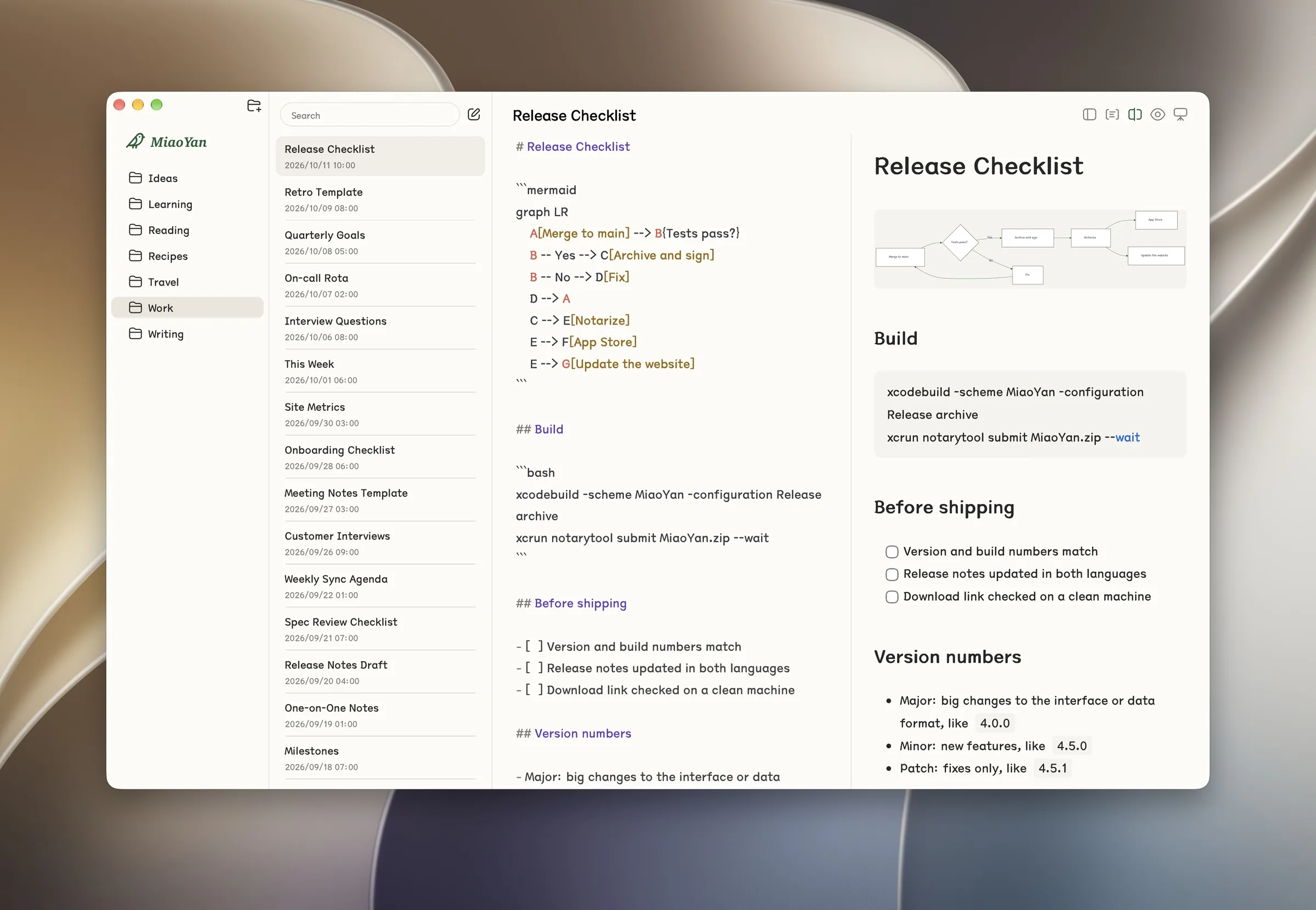
Edit and preview sit side by side. Press ⌘\ to toggle split mode, or open Preferences, go to Editor, and set Default Mode to Split. Why not WYSIWYG like Typora? Pure Markdown editing is the whole point. Native WYSIWYG in Swift is heavy and fragile; split mode keeps writing focused while giving you instant, synchronized visual feedback.
Documentation
- Introduction to MiaoYan - Usage guide and keyboard shortcuts
- Markdown Syntax Guide - Syntax reference with math and diagrams
- PPT Presentation Mode - Guide to creating presentations with
---slide separators - MiaoYan Agent Skill - Teach your agent MiaoYan syntax, attachments, PPT patterns, and CLI workflows
Install the official skill with npx skills add tw93/MiaoYan/skills/miaoyan -g.
Support
- The most direct way to support me is getting Mole for Mac, my paid Mac cleanup app
- If MiaoYan helped you, give it a star, share it, or open an issue or PR
- I have two cats, TangYuan and Coke. If MiaoYan brings you joy, you can feed them canned food 🥩
These lovely people already did 🐱

Acknowledgments
- glushchenko/fsnotes - Initial project structure reference
- stackotter/swift-cmark-gfm - Swift Markdown parser
- simonbs/Prettier - Markdown formatting utilities
- raspu/Highlightr - Syntax highlighting
- hakimel/reveal.js - PPT presentation framework
License
MIT License